
Introduction
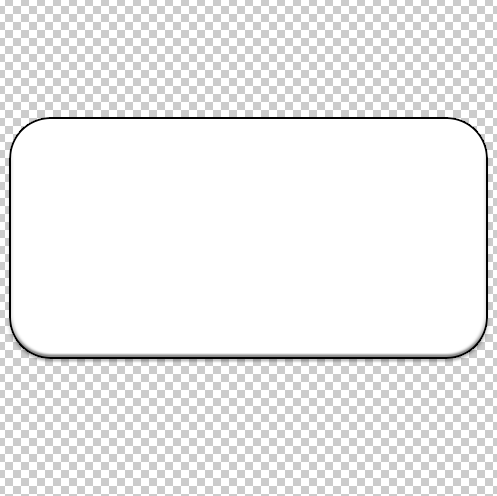
I was tasked to make a basic button for my User Interface (UI), so then players can click on something to interact with, Game Website, etc. All of this was made in Adobe Photoshop 2023 and Imported into Unity.
Tools Used

This button was created with the Rectangle Tool, this is located near the bottom of the Tool list. Now I have a basic button that the Player can use, but It can be made a bit better with further help of some tools.
Changing Shape – Properties
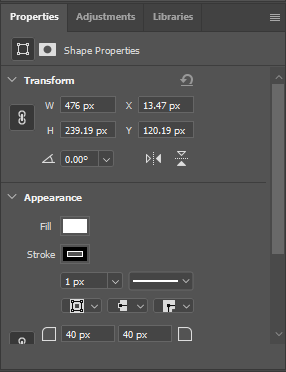
You can use the Properties Tab in the bottom-left corner to change the Colour, Line, Shape and Cut the corner of the shape if you wanted to. I cut the corner off the button to make look nicer to the Player.
Changing Shape – Bevel and Eboss

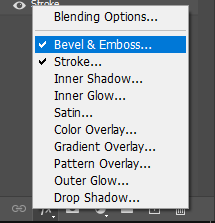
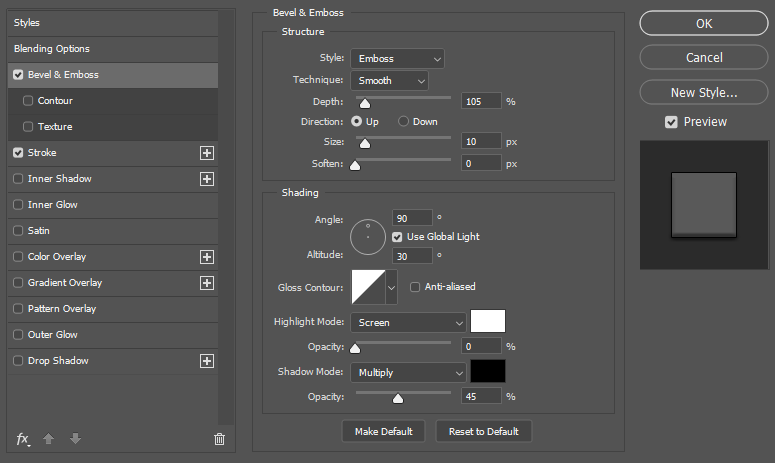
Now I want to give my button a bit more shape to It, I clicked on the ‘fx’ button and then click on ‘Bevel and Emboss’, this will open a little tab to mess with the shape of the button. Now you can change the Shape, Depth, Shading, Type, Style and Structure of the button to what you want it to be like for you use.
What was Challenging to me?
Getting the button I want was proven a challenge to me, Wanting to make a simple but nicely styled button is what I wanted but I did get what I wanted In the end.
What Have I Learned?
I have learned how to make a simple button in Adobe Photoshop 2023, give it a style, give it shadows, Bevel and Emboss it. I have learned how to Import the button into Unity so then I can use it for my games.