
https://thiccboi53.itch.io/pizza-clicker
Introduction
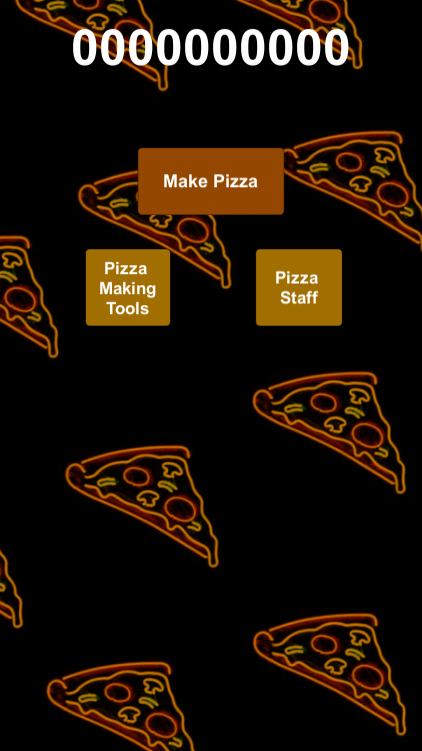
I were given a task to make a Cookie Clicker Clone of our choice, so I picked a Pizza theme for my cookie clone. I went many palette choices for orange with a tint of green. Black was the background so then the colour and the text will stand out and be easier to read.
So far, there is only two upgrades available to help with more Pizzas per second. First button increasing how many Pizzas you get per click, doubling each upgrade. The second button will allow you to make automatically make pizzas a second, both of the upgrades gets more expensive the purchases were made.
Software
The software we used to create Pizza Clicker Prototype is called Unity, a 2D and 3D software to make Games, Layouts, etc. Unity is one of the most popular 2D/3D Software’s that people and businesses use, along with other popular Software’s.
Script Software
The script software used is called Visual Studio Code, which is compatible with C# Scripts in Unity. Downloading Visual Studio Code will automatically sync with Unity and auto-connect to any Script made within Unity.
Text – Counter, Upgrade Info
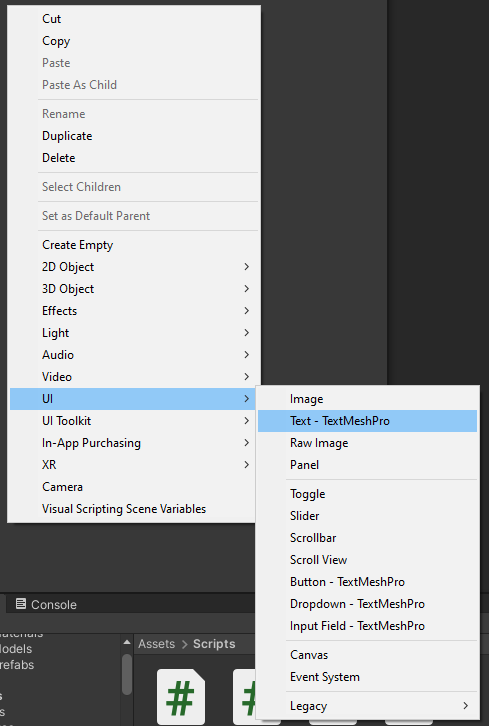
I need to make some Text to make a Counter and Upgrade Info Text for the game. So I need to Right Click, UI, Text – TextMeshPro, this will make a component/object of text which we can tweak.

Button – Make Pizza, Upgrade Buttons
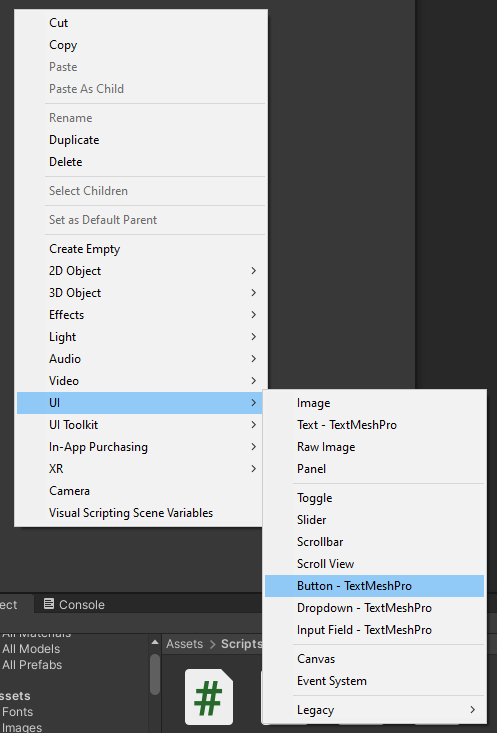
Now we need some buttons to click in order for our counter to be used and allow the player something to click on. Right Click, UI, Button – TextMeshPro. This will create a button to then link our C# Scripts for them to be functional.

C# Script
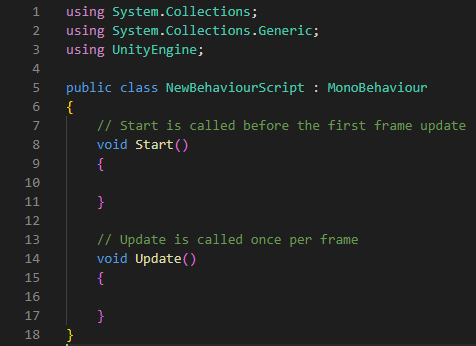
When a C# Script is made it has a default layout so you have a basic ground to help understand code and help you get started on where to type the code
Line 1 to 3 helps Unity to find and use the C# Script in the Software, then the Software can begin to read the code and the connections to other codes/objects within.
Line 5 will classify the script, clarify the name and prepare to read the code that’s within the brackets {}, this will group lines of code below and further brackets {} within will give separate other code commands to execute.
Line 7 shows you that you can make mental note on what the code below will do, this also helps with finding that set of code easier if there is an error in that group of code. You can make notes by using ‘//’ so then the computer doesn’t mistake this line as part of the code and will skip to the next line.
Line 8 has something called ‘void Start()’, this will start the code upon the game starting. Common things placed under this code are Objects that need to spawn at the start of the game like Player, Enemies, Environment, Text, etc.
Line 14 has something called ‘void Update()’, this updates any of the code within the group like Text, Ticks (Day and Night cycle), Timer, Health, Ammo, Points, Upgrade Info, etc.
Clicking Script

The first script that needed to be created is the Clicking script, this will allow us to click the button to execute the further function in the script to make pizzas and the amount of Pizzas you make per click.
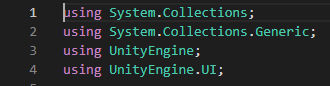
The first few lines, helps Unity to find and use the C# Script in the Software. but the 4th line ‘UnityEngine.UI;’ will allow the Player to interact with the Object that has the code attached to it, like a button.

This will allow the Text for the counter to show up on the screen. for example, allowing for ‘00000’ to show up at the starter counter when typed in. This will every time the game restarts it will be set to the amount you put in.
I needed to set the amount of Pizzas are made with each click, so a ‘ammountPerClick = 1.0f;’ was added to the code so then it forces a set amount every time the button is clicked.
‘1.0f’ is needed so that the computer can understand that we want to increase the counter a full value of ‘1’ per click, without this it can run into problems like not going by anything when clicked.
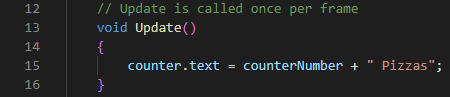
We have the counter showing the numbers and is going up by 1, but we still aren’t explaining what we are making with the numbers. So the ‘void Update()’ Group will help reinforce the number going up by 1 per click. By adding ” Pizzas”; onto Line 15, this will now say 00000 Pizzas on the counter so now we know what we are making.
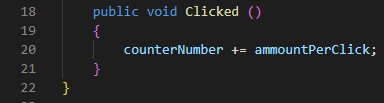
Now we need the code to remember the Counter and remember every time the button was pressed. So line 20 will remember the current counter and then add every value from each click that hits the button.
Fixed Problems
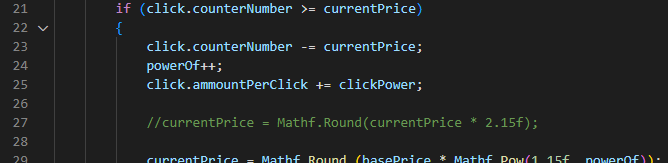
We did fix a problem before the prototype was sent to other people to try. On line 23, there was a misspell for click.counterNumber which then the computer can’t understand the language, it must be done precisely. It was clck.CounterNumber when it should be click.counterNumber, a misspell and a capital letter that should be lowercase. Correct line of code is shown above.
Current Problems
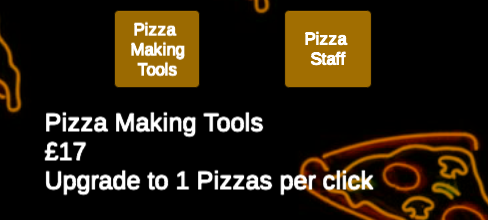
There is a few problems we have ran into. Sometimes, the text that pops up when hovering over the buttons won’t fully update sometimes when you have more then one upgrade for any of the buttons.
Another problem is that the game will start with first auto upgrade already applied, so the first upgrade doesn’t do anything but the second one will upgrade and continue normally after that.
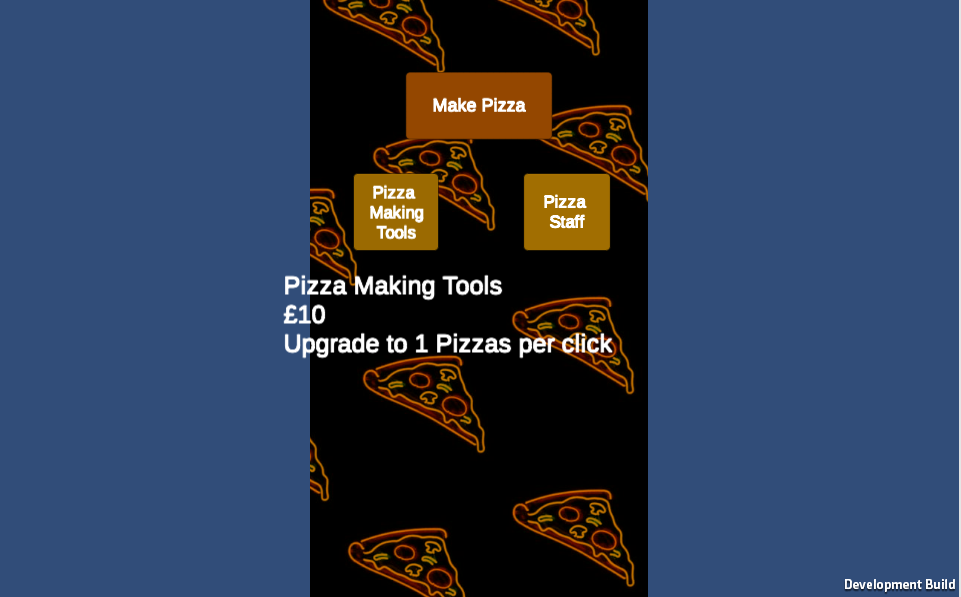
The game must be played in full screen or this is what the game will look like, you won’t see how many Pizzas you are making and the text will clip out of the play area. The text may also be a bit harder to read.
What have I Learned?
I have learned the basic of Unity, understanding how to create objects, texts, C# Scripts, creating links between Scripts and objects. I have learned about C# Script and coding, learning to make a counter, link to a button, increasing the counters value per click of a button, etc.
One response to “Game Design and Prototyping: Pizza Clicker”
[…] Game Design and Prototyping: Pizza Clicker Game Design and Prototyping: Shape Invaders Game Design and Prototyping: Shape Defender Game Design and Prototyping: Mouse Platformer November 27, 2022 […]